
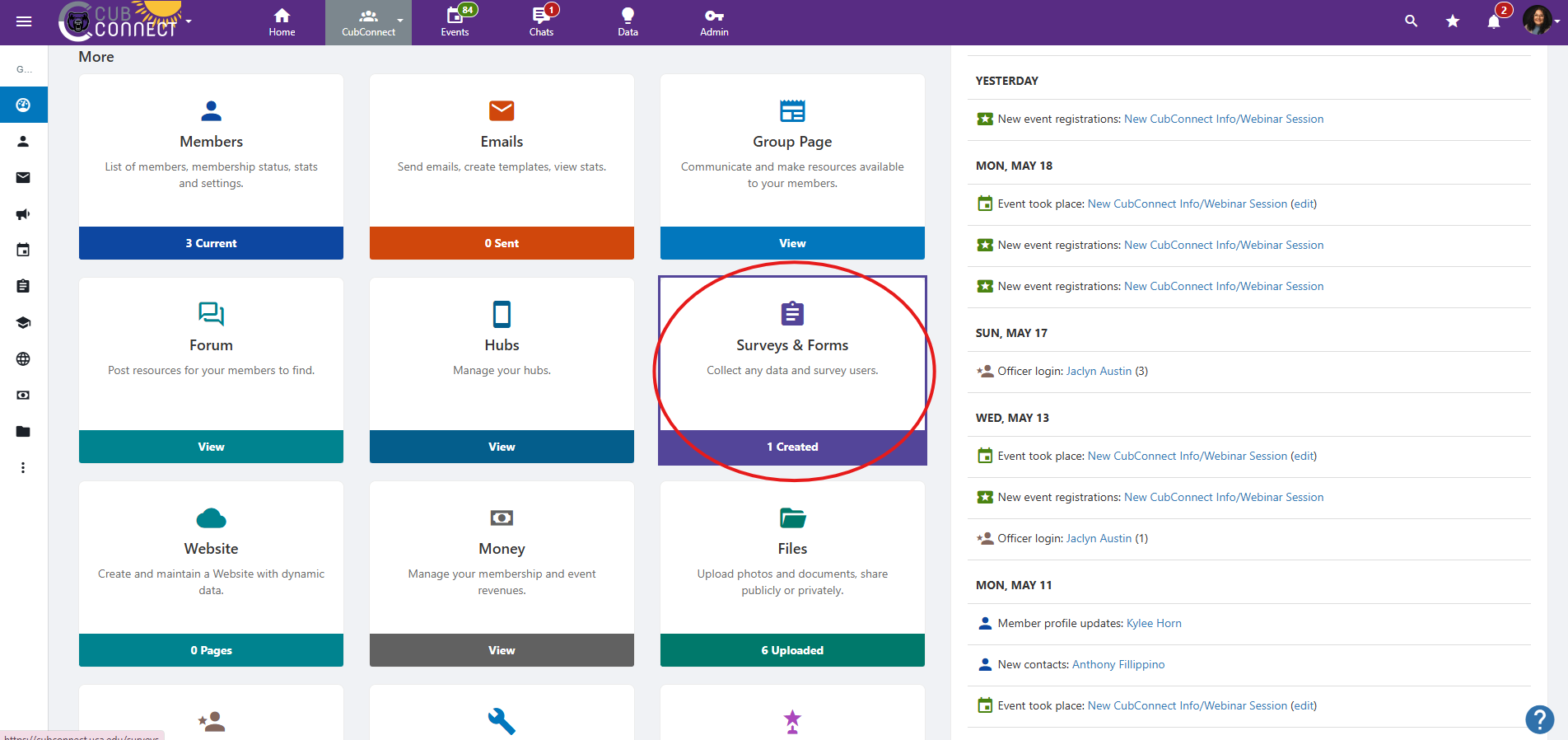
- Step 1: Navigate to your respective organization’s homepage and click “Surveys & Forms.”
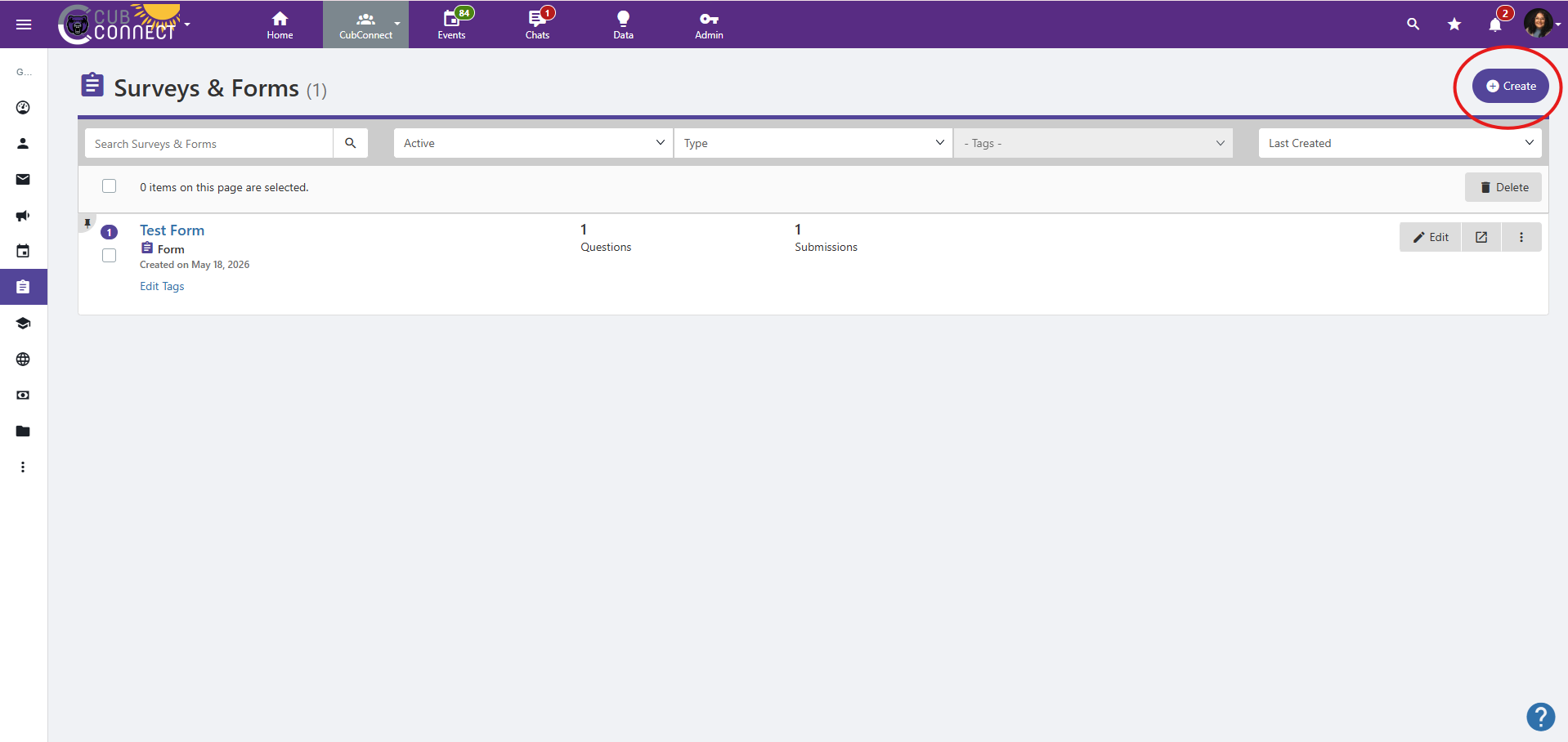
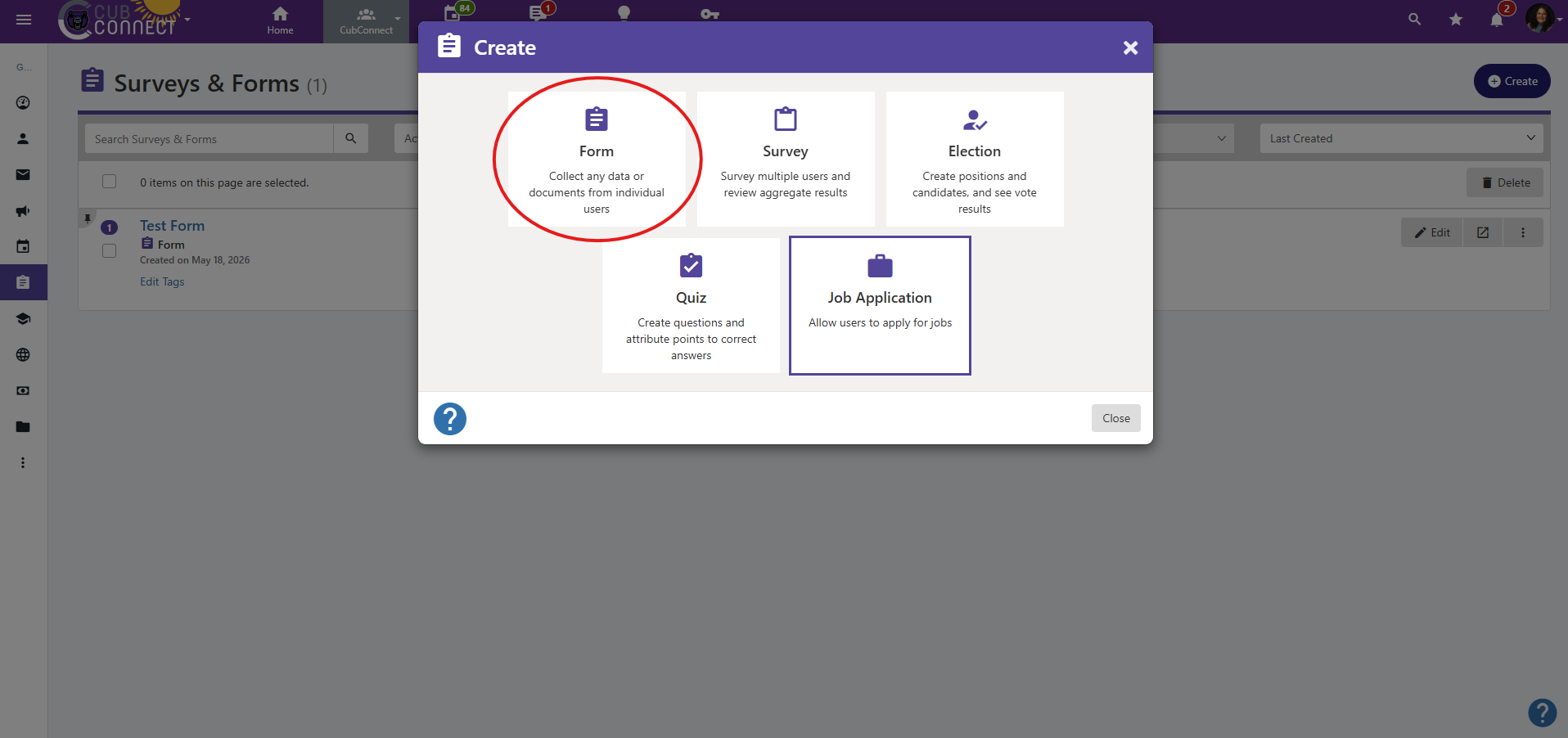
- Once you get to this page, you will click “Create” and then choose “Form.”
- Step 2: Fill out the form information under “Survey Settings”
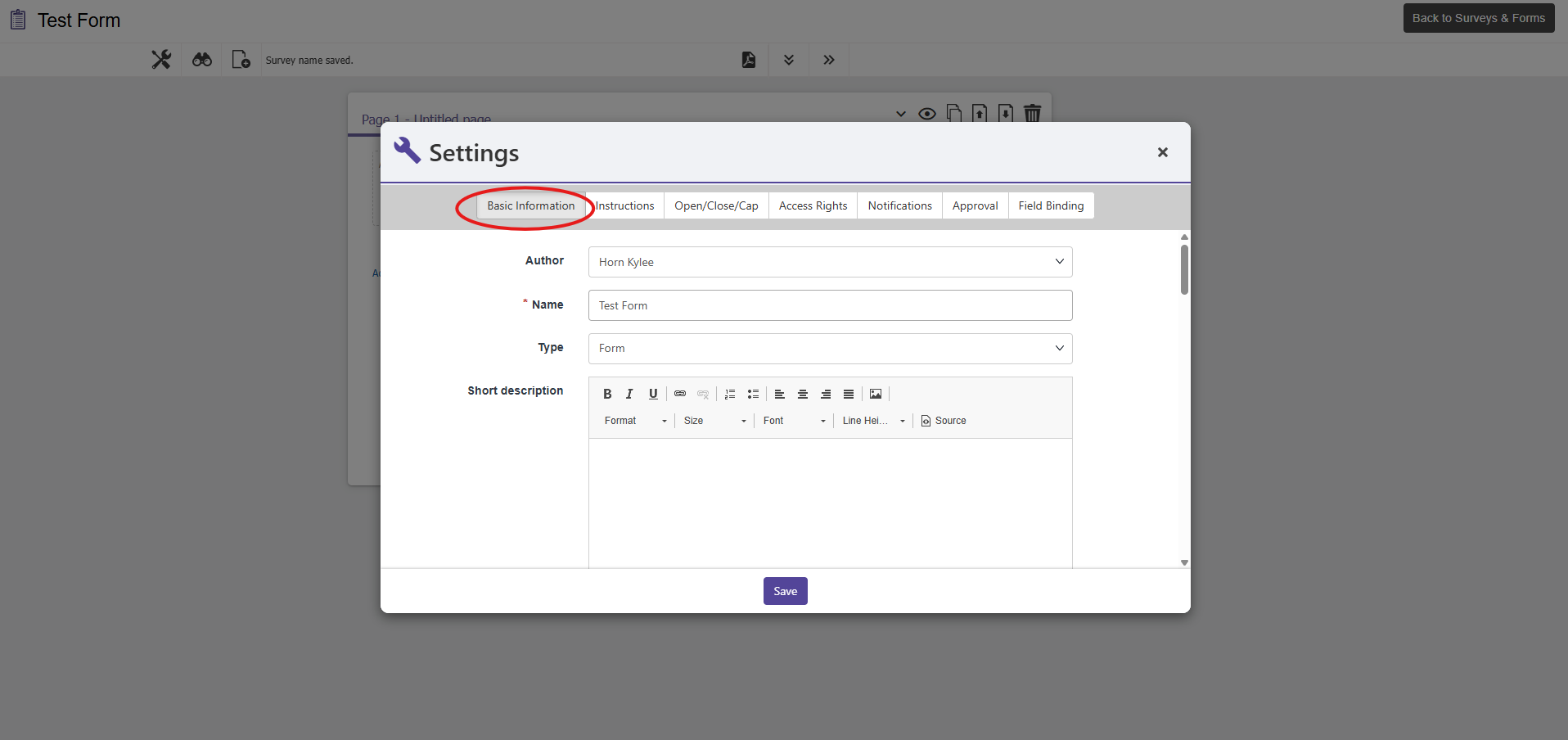
In “Survey Settings,” under “Basic Information,” you can give your form a title, a short description, and a confirmation message.
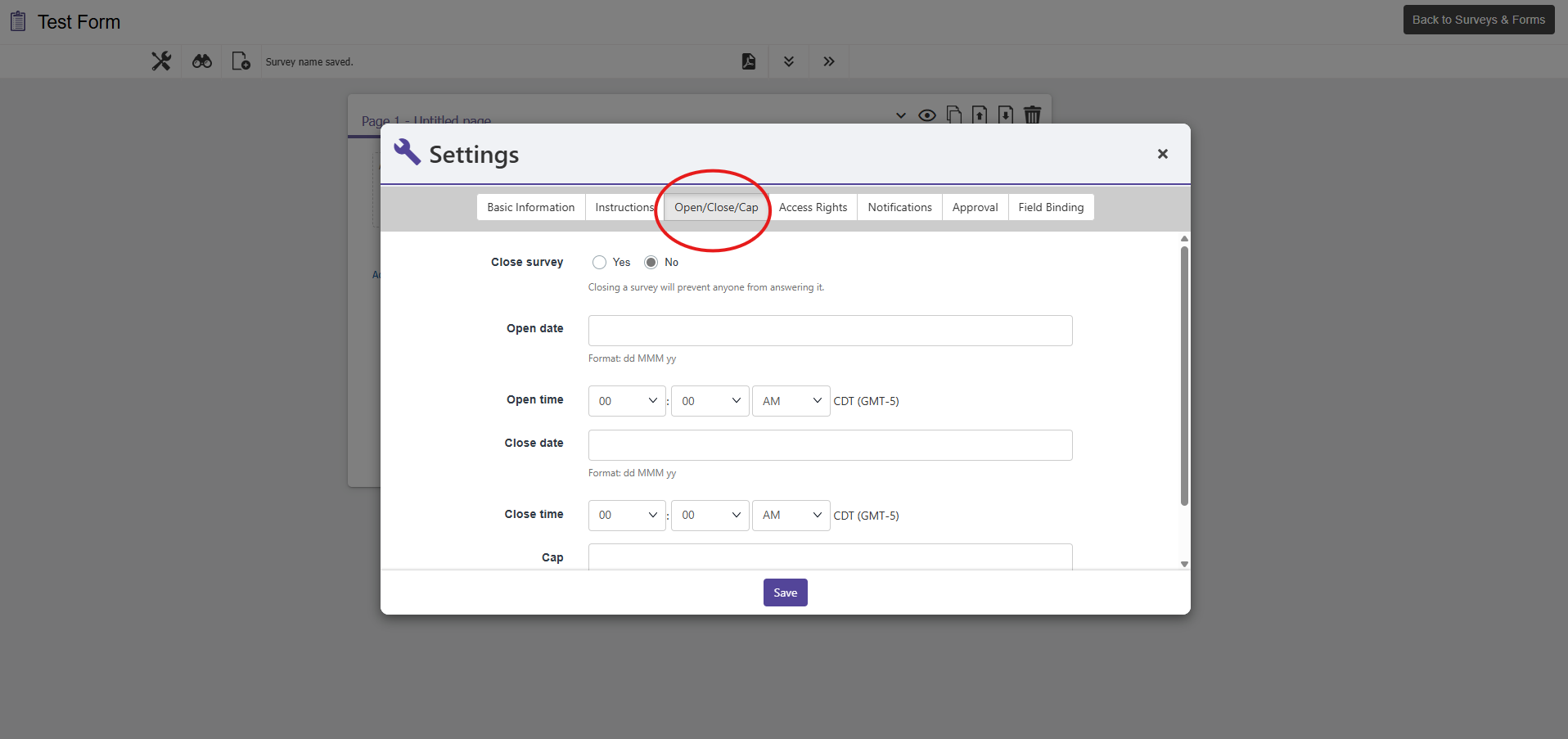
Under “Open/Close/Cap,” you can choose to close your form, set an open and close date, or set a cap on your form.
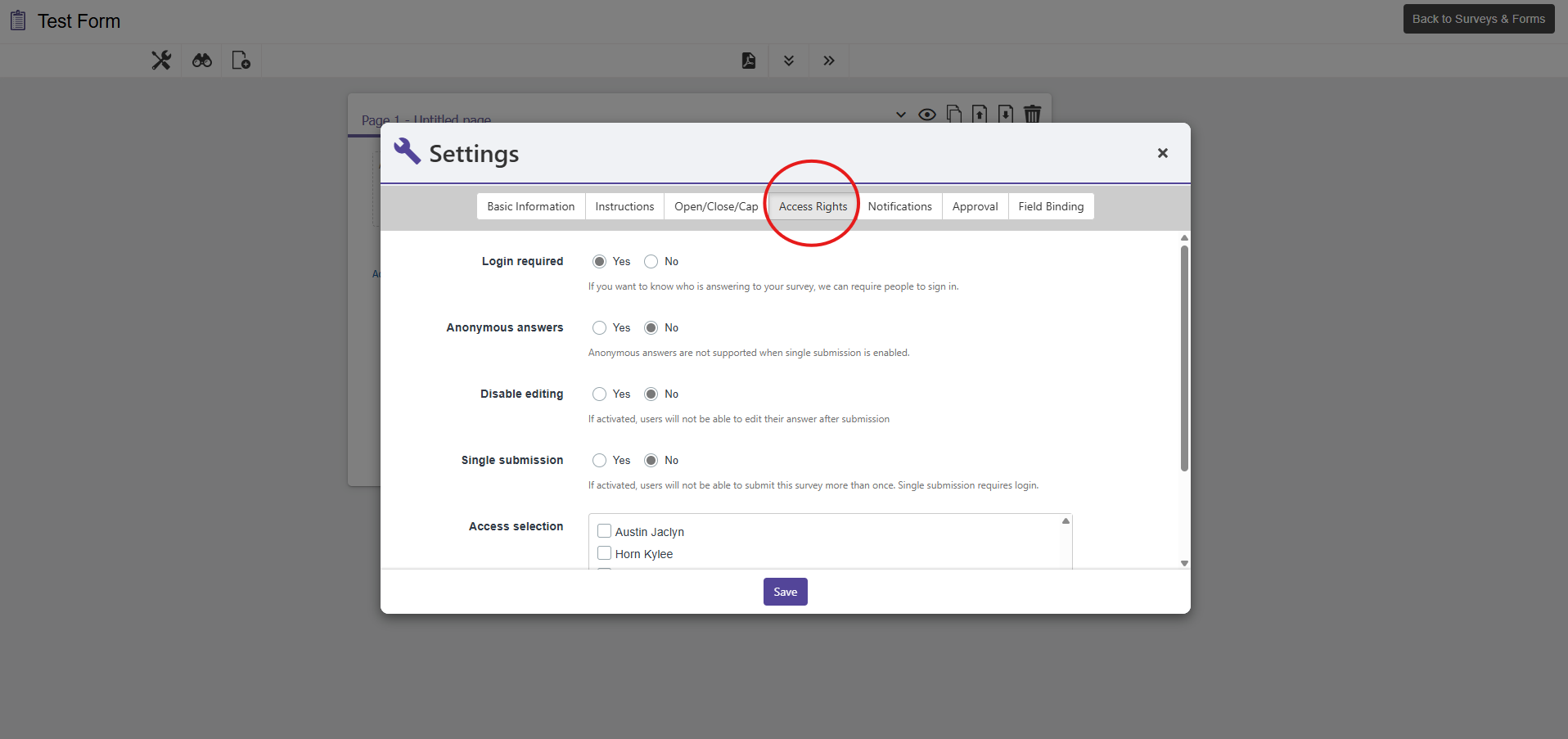
Under “Access Rights,” you can choose who you want your form to be visible to.
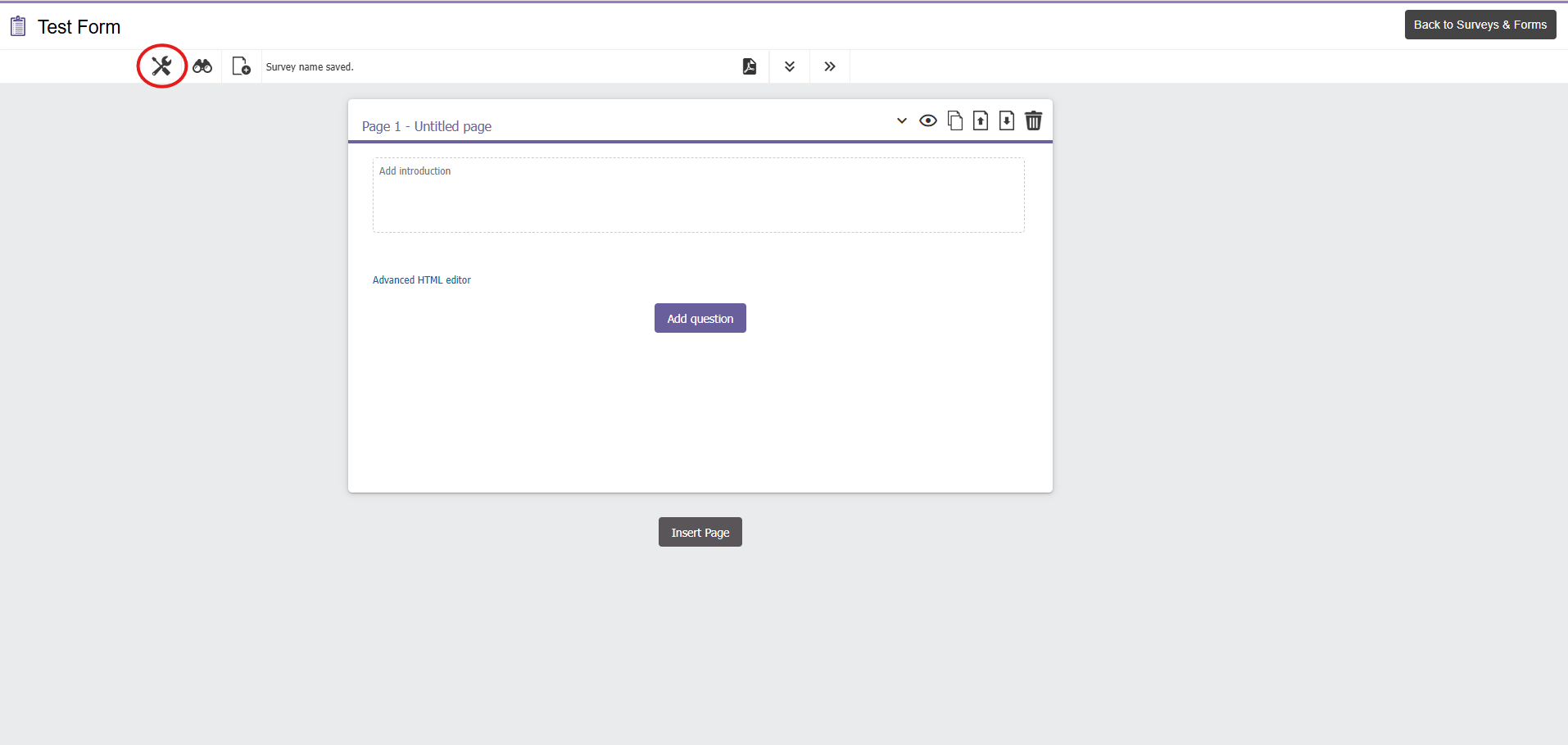
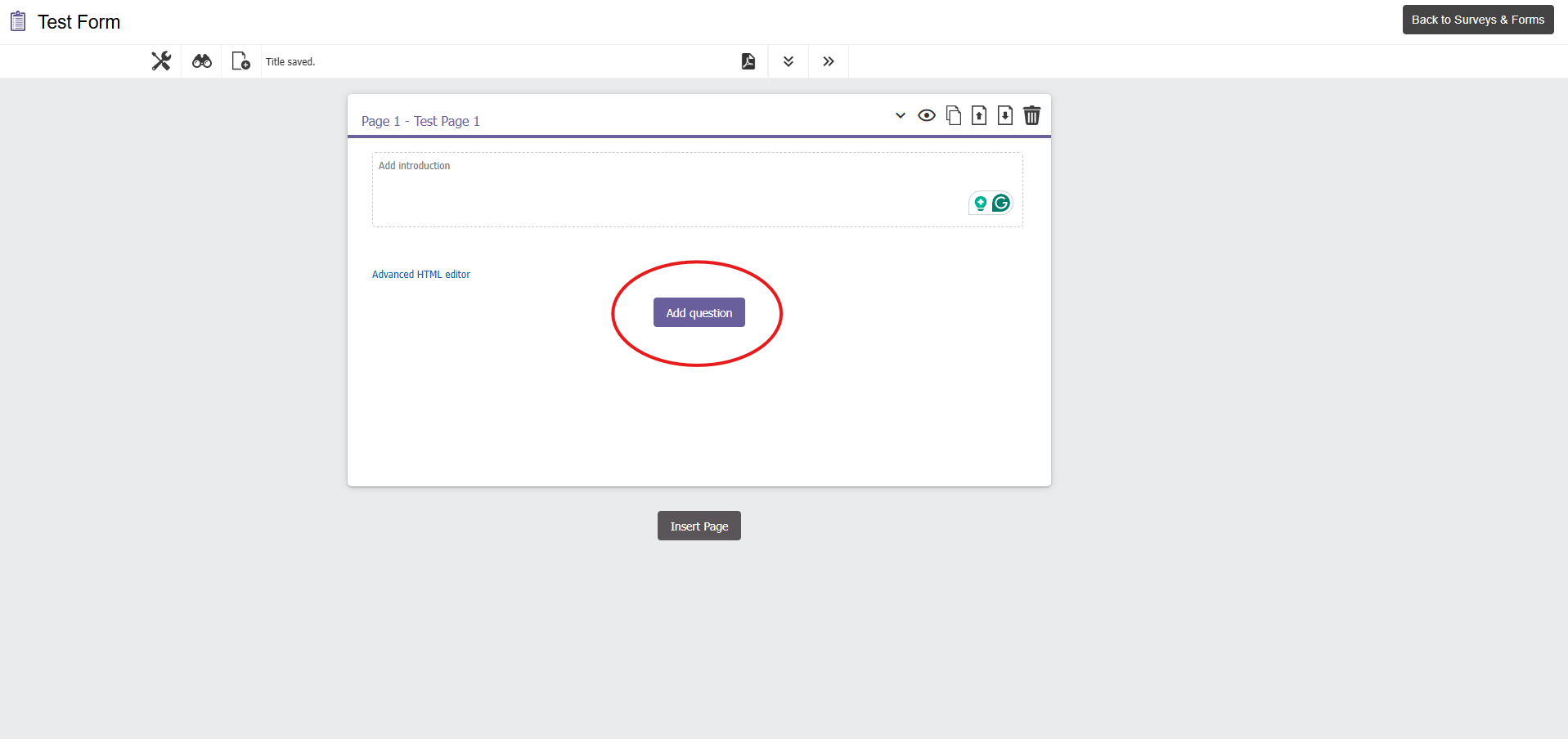
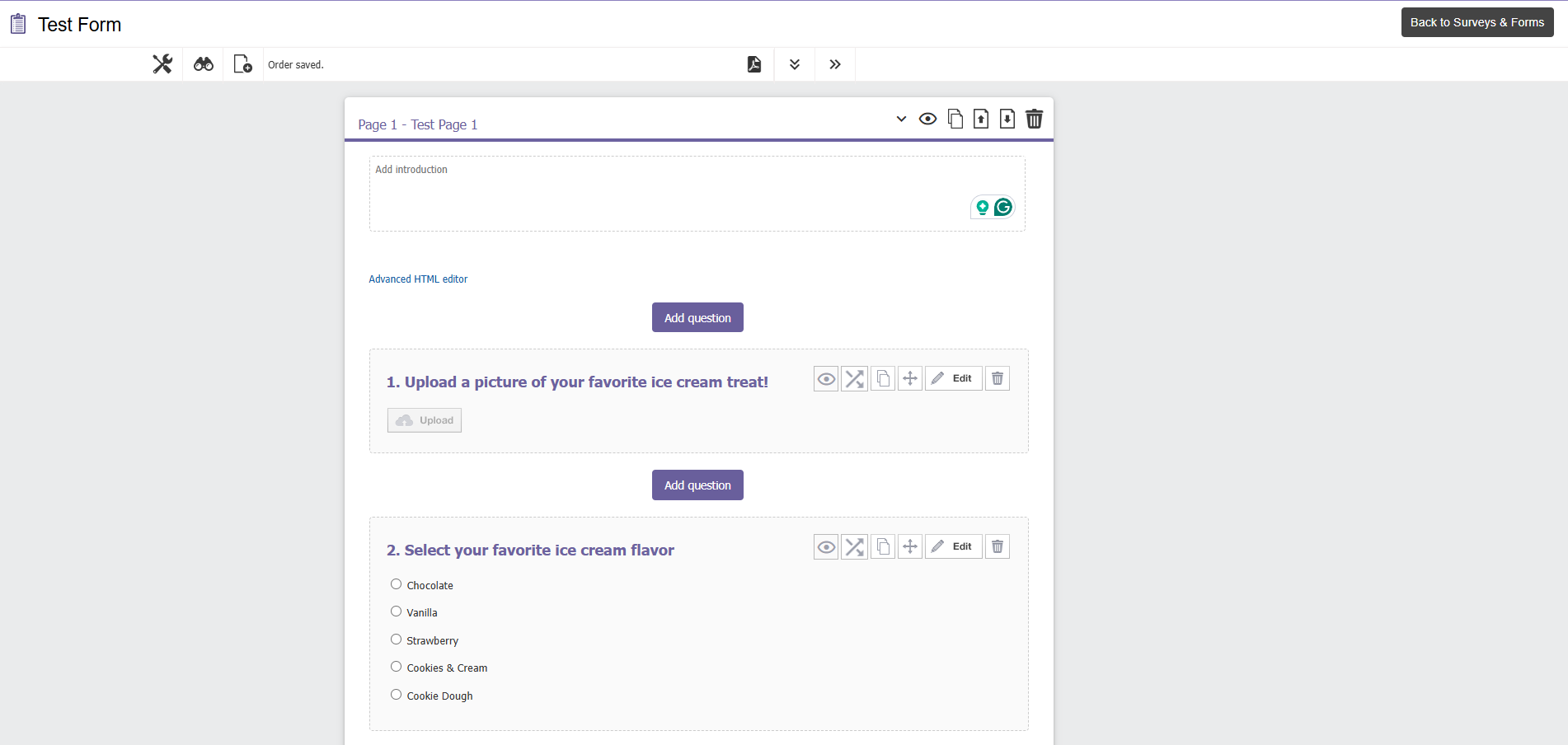
- Step 4: Add questions to your form by selecting a type of question under “Add Question.”
Repeat until you’ve added all of your questions.
You can also add more form pages by clicking “Insert Page” or
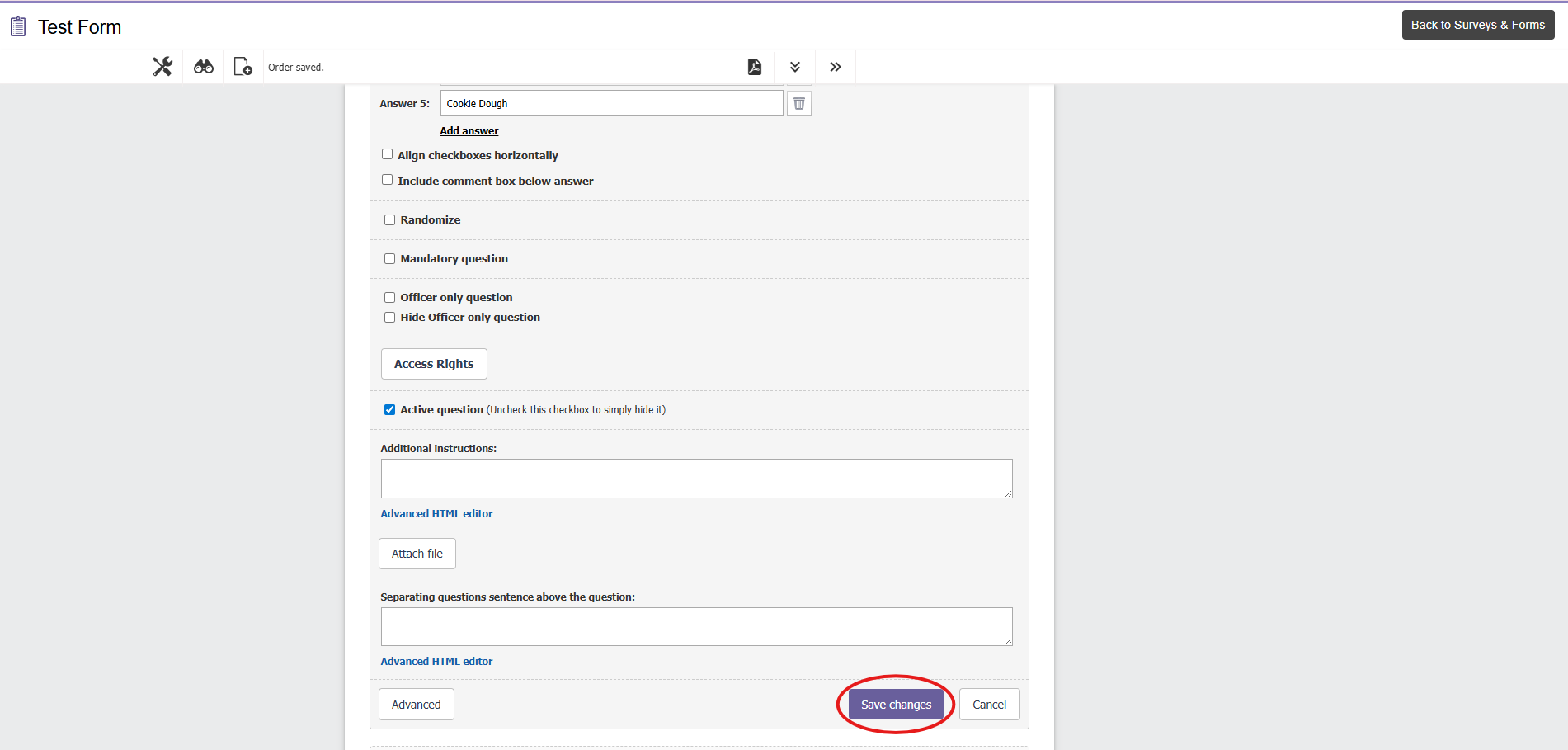
Make sure to hit the “save changes” button after you’ve added your question!
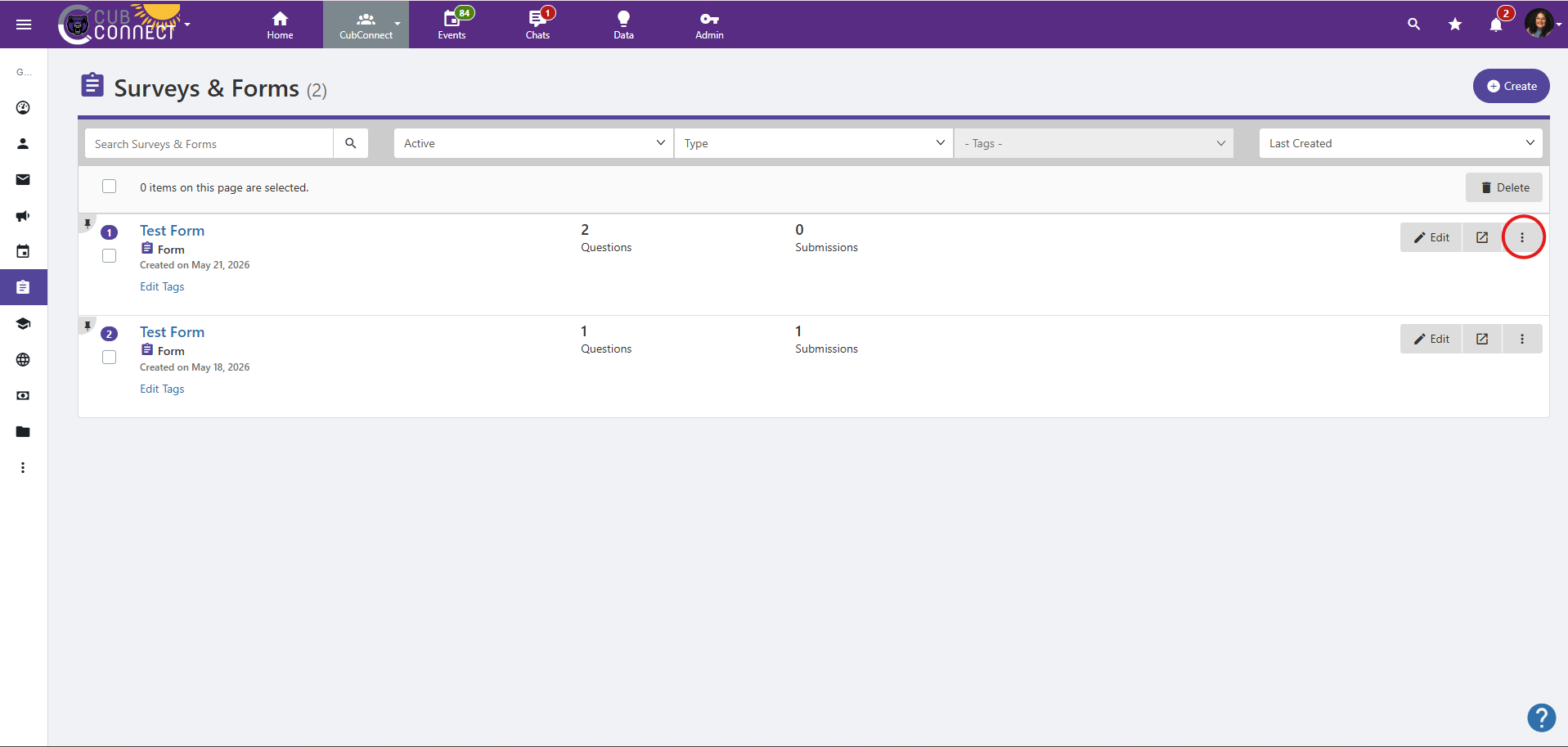
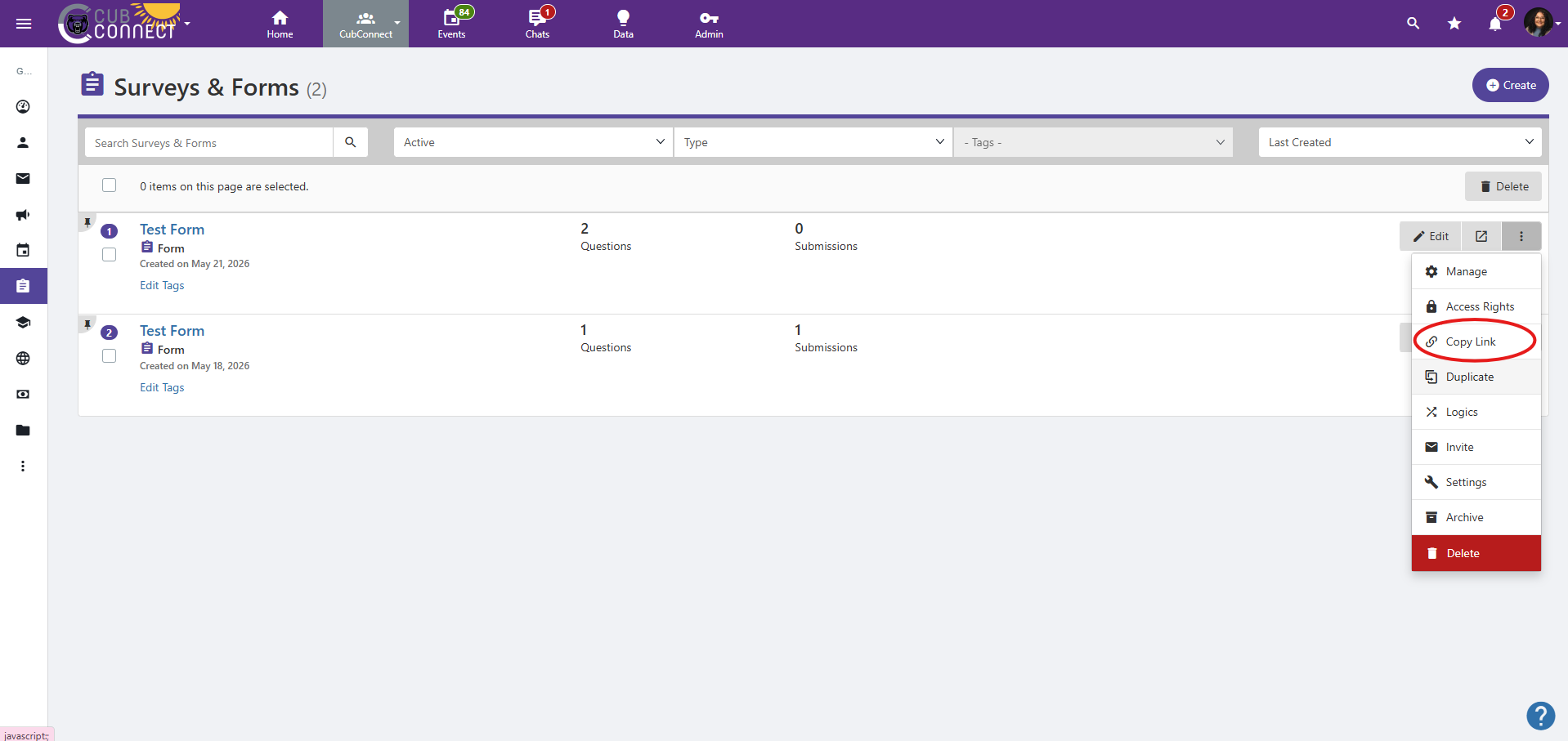
- Step 5: Share your form by clicking the three dots next to your form and then selecting “Copy Link.”
This is the only way to share the form! Do not copy and paste from the browser’s address bar.
- Step 6: To see submissions, you will go into your groups page, select “Surveys & Forms,” and then click on the Form. This will show you all submissions.